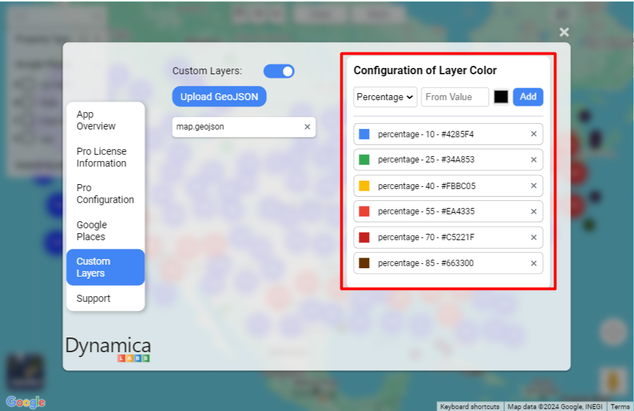
Upload a GeoJSON layer
- Open the PRO menu and select Custom Layers.
- Choose Upload GeoJSON.
- Select a .json file containing the required zones.
- Return to the map and select a zone.
- Open the zone settings and choose Apply Filter.
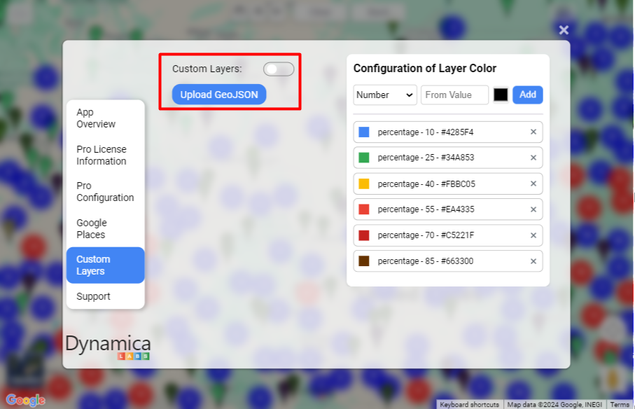
Color zones by a metric
- Add the desired measure or column to the Layer metric field.
- Open Configuration of Layer Color.
- Define threshold values and colors.
- Return to the map to view the updated zone colors.
Note
The source guide demonstrates threshold-based colors using availability percentages. Choose thresholds that match the meaning and scale of your own metric.