Add a place category or specific place
- Open the PRO menu and select the Google Places tab.
- Enable Google Places.
- Select Add Category/Place.
- Enter a category such as hospital, hotel, or restaurant, or enter a specific place name.
- Select Add, return to the map, and enable the new place entry.
Inspect and filter around a place
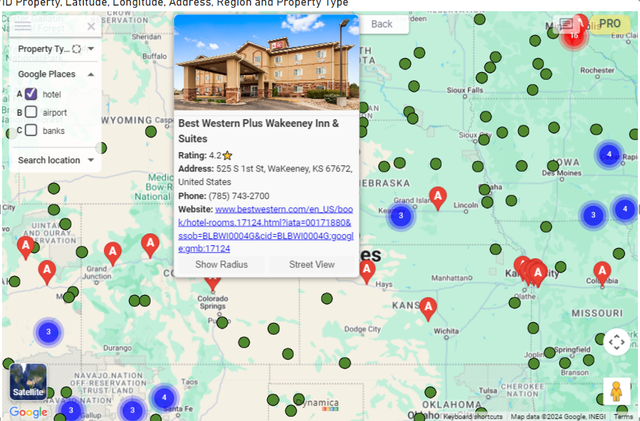
- Open a place marker to view available details such as phone number, rating, website, and photos.
- Select Show Radius and use a radius label to filter report objects.
- Use Update Places after moving the map to refresh results in the visible area.
- Open Street View or View on Google Maps when those actions are available.
Place labels
Note
The guide states that newly added places are lettered alphabetically and reordered when entries are deleted.