
Show radius for one object
- Open Pro Configuration and enable Show Radius.
- Configure up to three radius values.
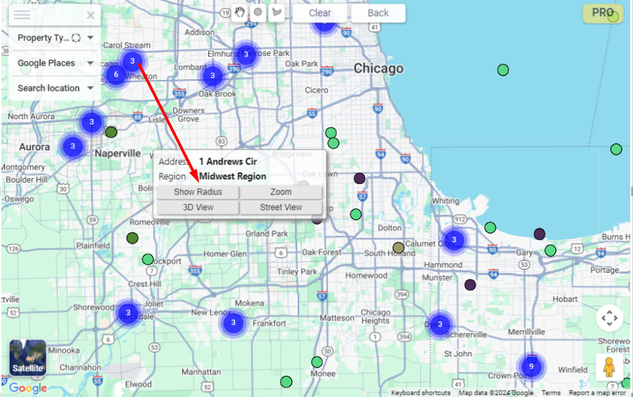
- Open a marker and select Show Radius.
- Select a radius label to filter objects within it.
Display radii for multiple markers
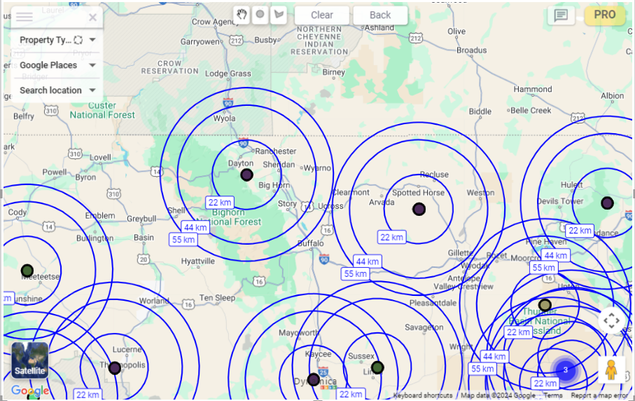
- Enable Display All Radii and set the radius length.
- Close the PRO menu to display radii in the current map area.
- After moving the map, use Update Radii to add radii for newly visible markers.
- Turn off Display All Radii or use Clear to remove them.
Filter feedback
The active radius label is highlighted. Labels are also highlighted while the user switches between radii or hovers over them.