
Draw and apply a filter
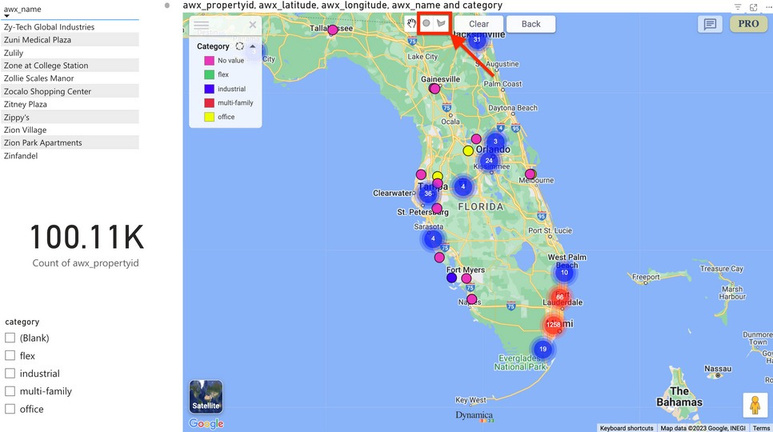
- At the top of the map, select Circle or Polygon.
- For a circle, drag from the center to define its radius. For a polygon, select multiple points to define the boundary.
- Select the shape settings control and choose Apply filter.
- Use Clear to remove the filter.
Behavior above 10,000 objects
Important
The source guide describes special handling when selected polygons collectively contain more than 10,000 objects: earlier polygons may be unapplied, and counts for very large polygons may be approximate. Use a smaller polygon for a precise count or use Drill Down, which may load slowly.