
To configure the Google Maps for Power BI component, please complete the following steps:
1. Open Power BI application.
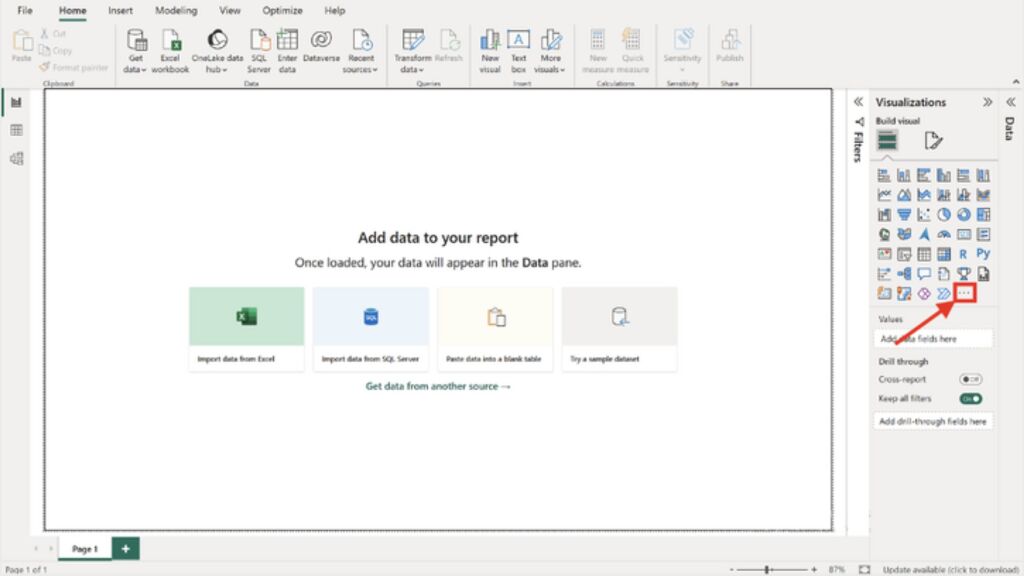
2. On the start page, click the three dots button in the Visualization section on the right side.
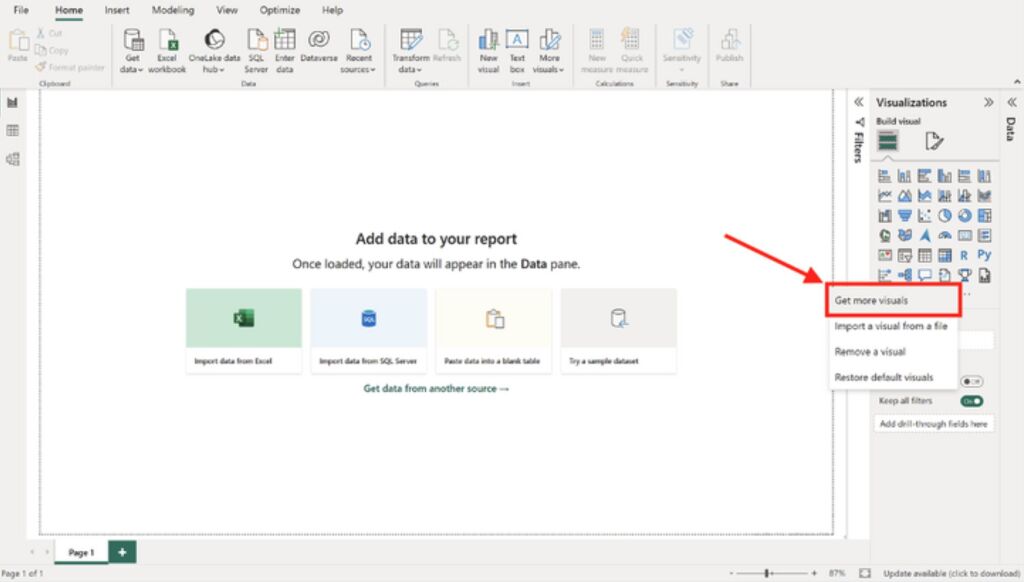
3. Select “Get more visuals”.
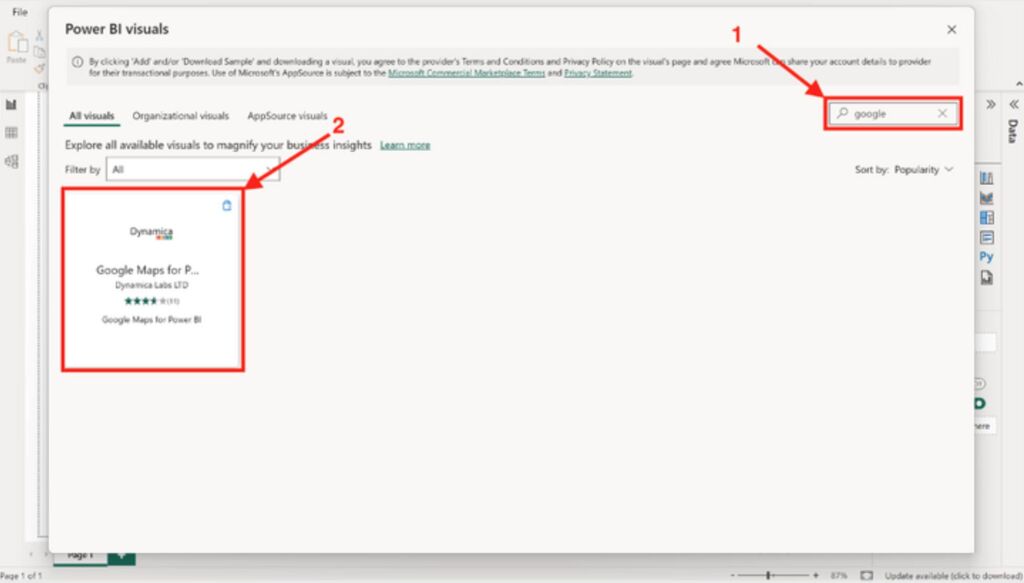
4. In the opened window, type ‘Google Maps’ in the search field and select the Dynamica Labs visual.
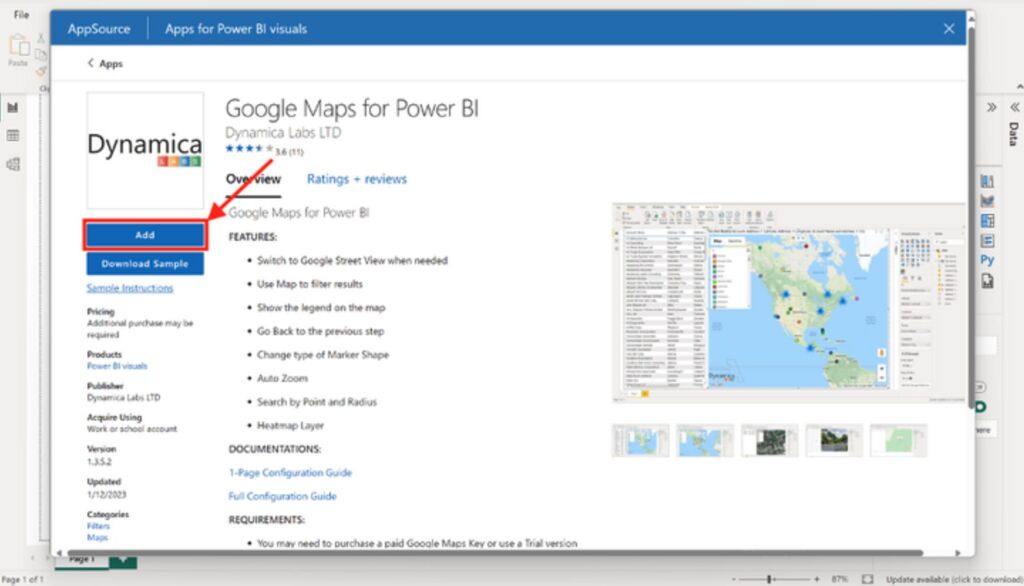
5. Click on the “Add” button.
6. Select the ‘Google Maps for Power BI’ visual that appears.
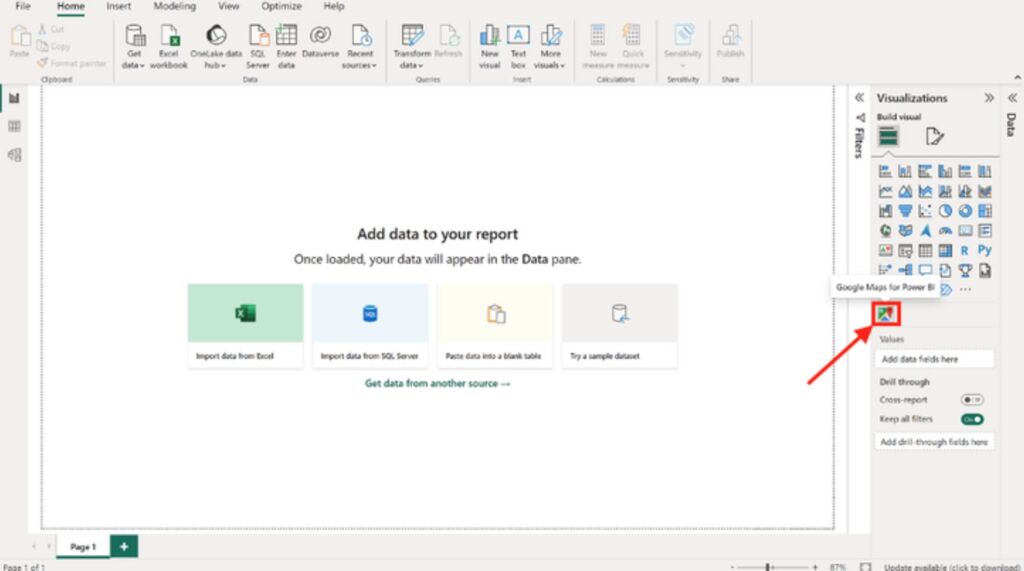
7. Get you data.
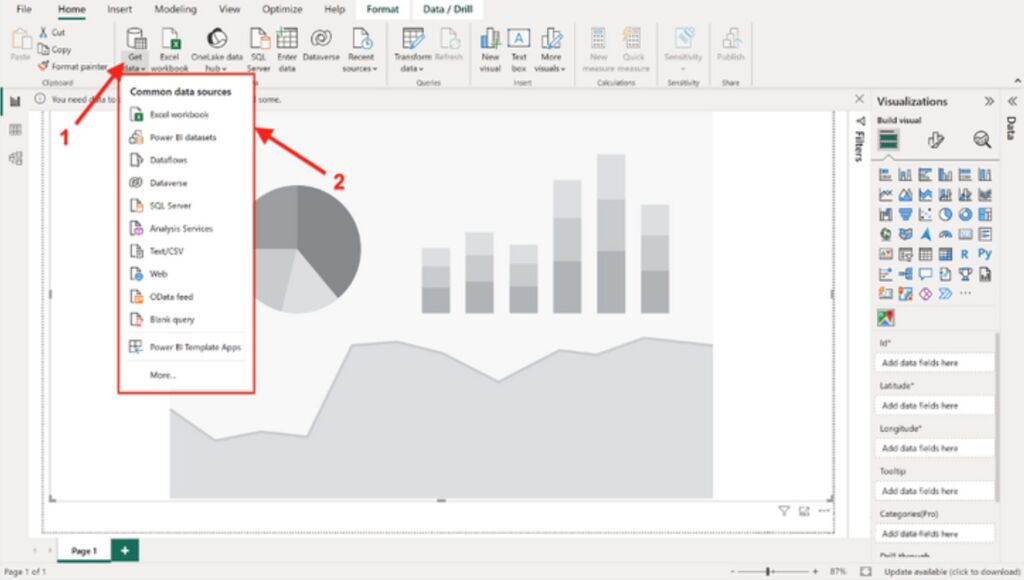
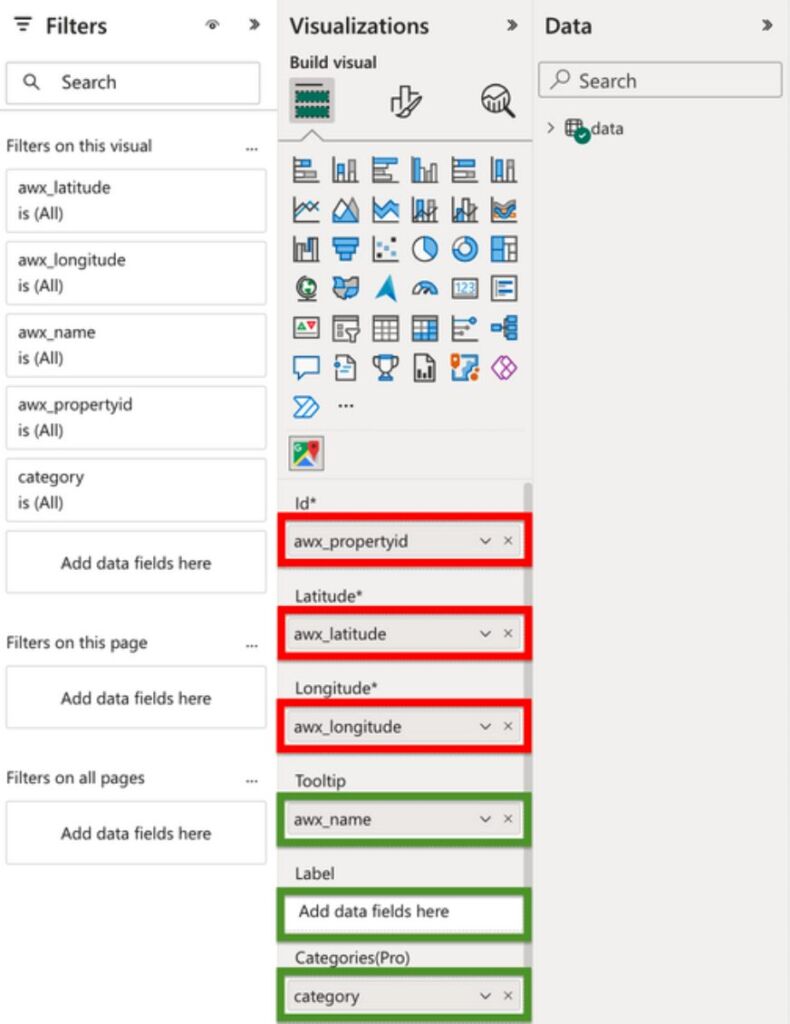
8. On the right side of the screen, fill in the following fields:
- ID: A unique record ID. This field is required for filtering and displaying your objects.
- Latitude and Longitude: These are the required coordinates that represent geographic locations.
- Tooltips: Select one or more columns from the table to display information about your object by clicking on it. This field is optional.
- Label: Choose a column from the table to display information, such as the name, above your objects by default. This field is optional.
- Categories: You can use this to categorize your objects by types or functional purpose. This field is optional.
Please note:
Your data must contain Latitude and Longitude coordinates. The system cannot process addresses in text format. There are many tools available (extensions, paid and free online platforms, and more) to convert addresses into latitude and longitude coordinates.
For example, you can use the following free platforms:
https://www.geoapify.com/tools/geocoding-online
https://mygeodata.cloud/converter/xls-to-latlong
9. Fill Google Maps Settings.
- Paste your Google Maps Key (received from https://console.cloud.google.com). The Google Maps key is not required for the first 3 days of use.
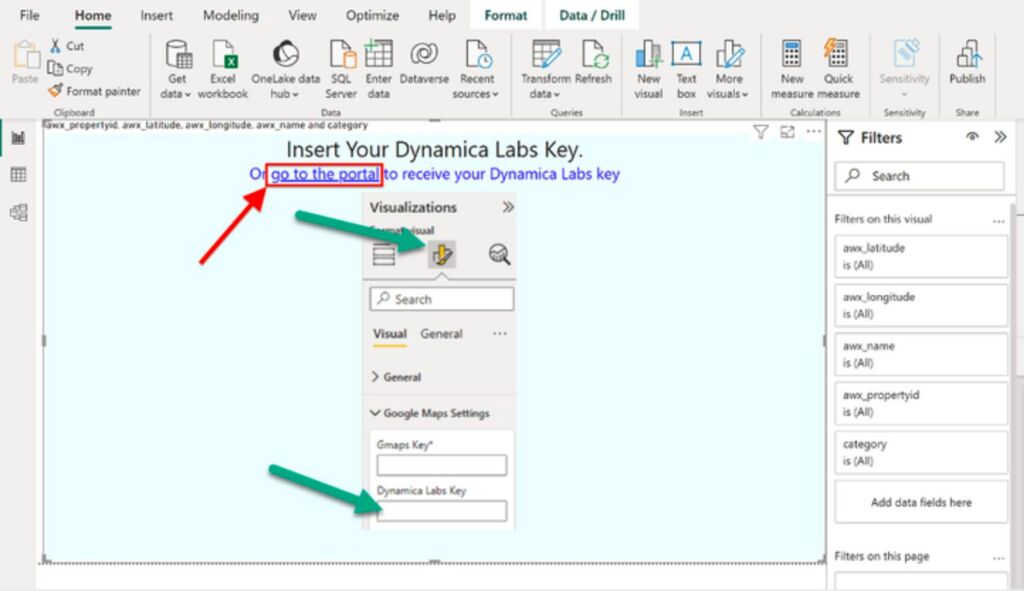
- Paste your Dynamica Labs Key.
- Enter the minimum number of pushpins for creating clusters.
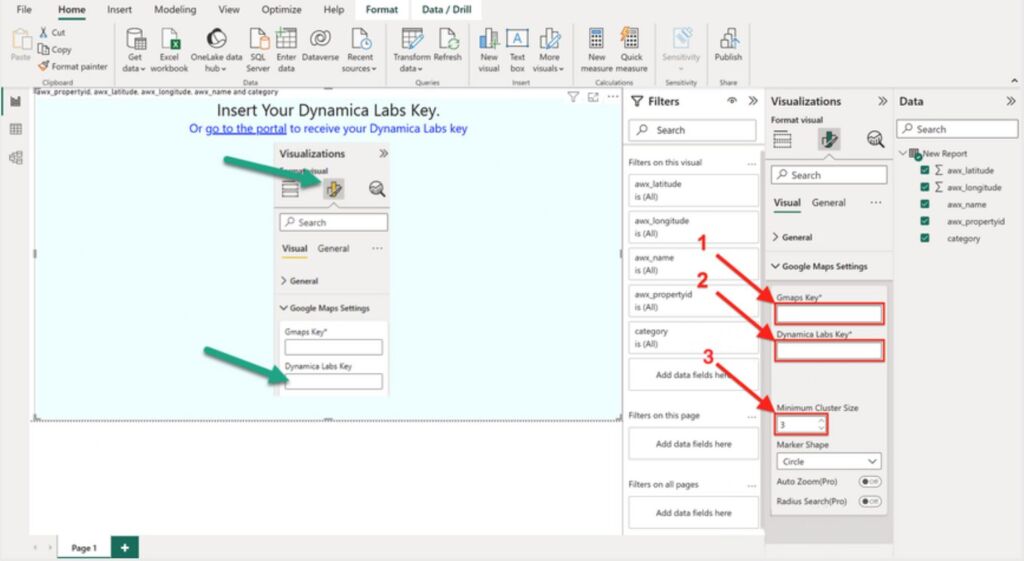
10. If you don’t have a Dynamica Labs Key yet, please click the link displayed in Power BI on your screen.
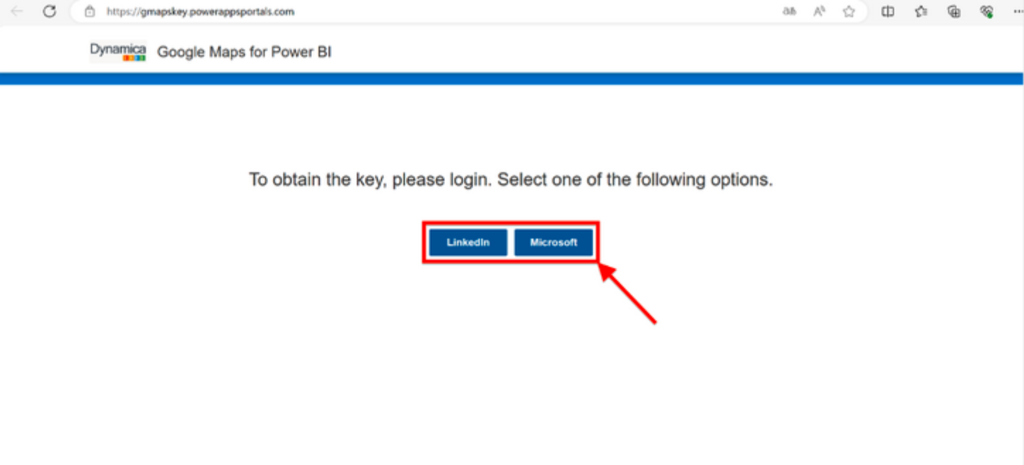
11. Choose one of the available options to log in and receive your key.
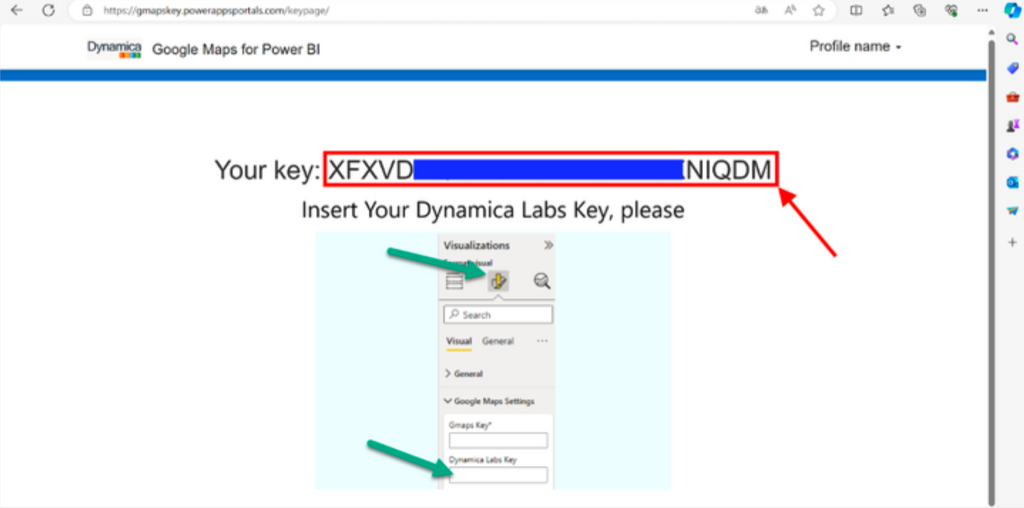
12. Copy your Dynamica Labs Key and paste it into the Google Maps Settings field.
13. Save the current report