
In order to use Google Maps in Power Bi – Maps JavaScript API must be enabled. Then Google Maps API Key can be generated. Usually Maps JavaScript API (as well as Places API) is enabled by default, but this should be checked.
To do that:
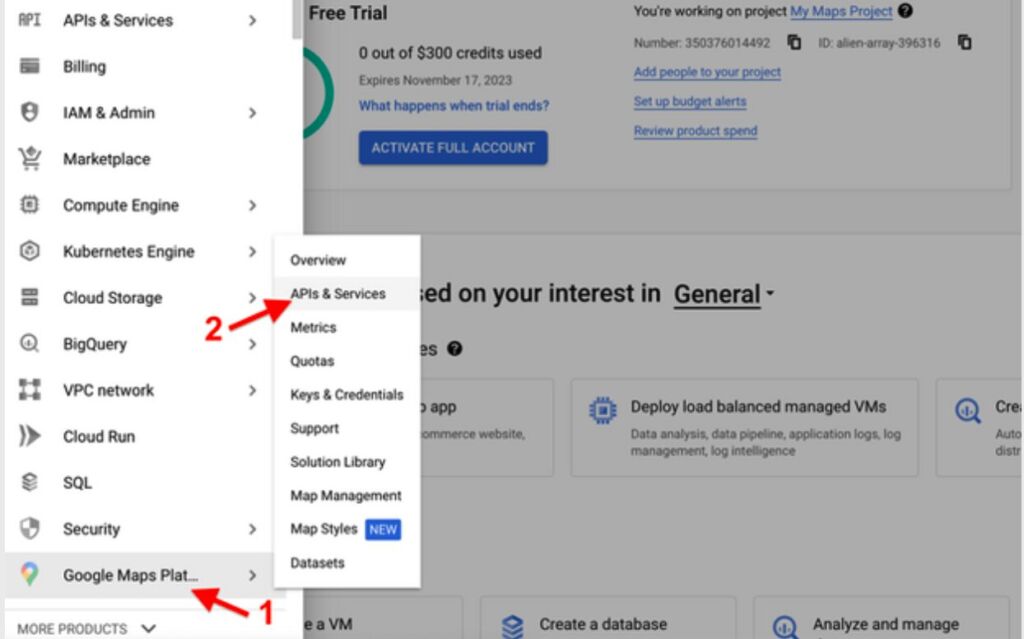
1. Go to https://console.cloud.google.com and scroll to the bottom of the left-side menu
2. Select Google Maps Platform -> APIs & Services.
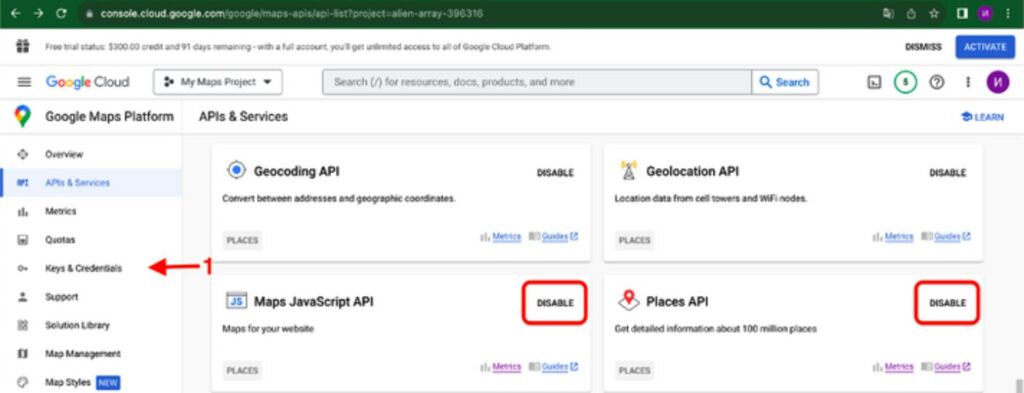
3. Locate Maps JavaScripts API and Places API (if necessary). If you see a “Disable” button in front of the API name, it means that this API is already enabled.
If the Maps JavaScripts API is disabled, enable it (and the Places API, if necessary).
After that, click on “Keys & Credentials”.
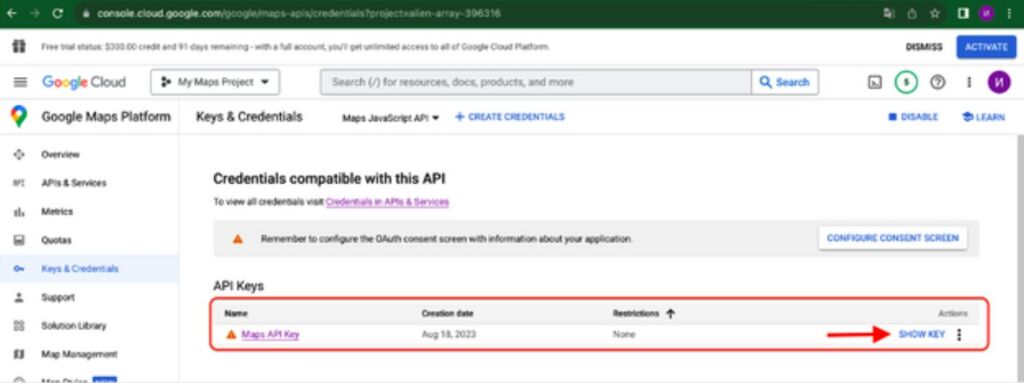
4. You can find your API Key here.
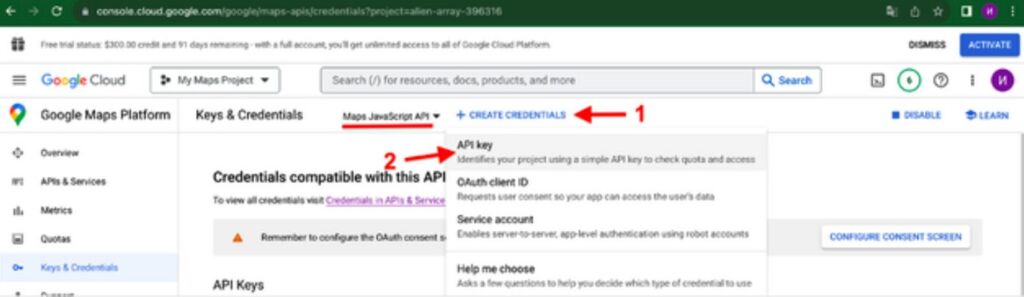
5. If no API keys to display.

6. Click on “Create Credentials” -> API key.
7. Copy API key and click “Close”. The new API key is listed on the Credentials page under API keys.
(Remember to restrict the API key before using it in production.)